После атаки вредоносного ПО интерфейс настроек Защитника Windows может отображать сообщение Некоторые настройки управляются вашей организацией. Кроме того, защита в режиме реального времени и облачная защита могут оставаться отключенными.
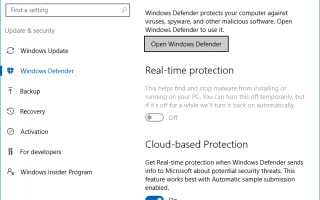
Вот как может выглядеть страница настроек Защитника Windows. Элементы управления для защиты в реальном времени, облачной защиты и параметров автоматической отправки образцов могут быть отключены, заблокированы или выделены серым цветом.
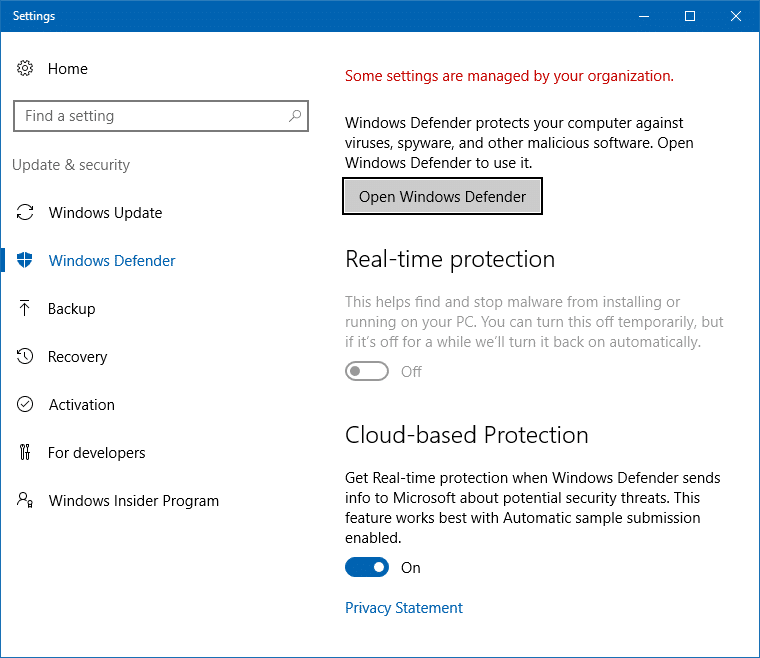 Настройки Защитника Windows отображаются серым цветом
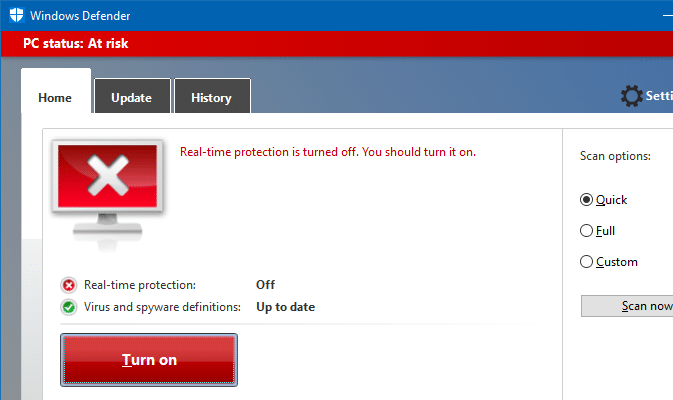 Защитник Windows в режиме реального времени отключен
Если вы установили сторонний антивирус, Защитник Windows автоматически отключается. Это нормально. В этом сообщении рассказывается, как активировать защиту Защитника Windows в режиме реального времени и другие параметры, удалив все политики на основе реестра Защитника Windows. которые были ранее добавлены вредоносным ПО, или добавлен, когда вы использовали сторонний твикер или инструмент защиты конфиденциальности.
Вызывается сторонним инструментом защиты конфиденциальности?
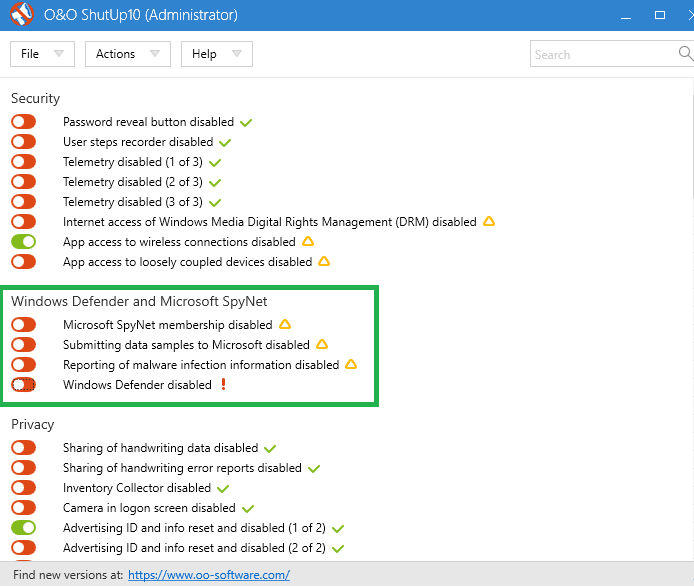
Если вы использовали (или использовали) антишпионские инструменты, такие как OO ShutUp10, обязательно сбросьте все настройки «Защитника Windows и Microsoft SpyNet» в OO ShutUp10. Вот как это должно выглядеть после их сброса.
Вызывается вредоносным ПО?
Во-первых, убедитесь, что вы полностью удаляете вредоносное ПО с помощью эксперта или друга — учитывая сложность заражения вредоносным ПО, может быть предложена профессиональная помощь. Вы также можете попробовать Защитник Windows в автономном режиме.
Процедура удаления вредоносных программ является сложной и выходит за рамки данной статьи. После полного удаления вредоносного ПО удалите параметры политики Защитника Windows, которые были добавлены вредоносным ПО на основе реестра.
Удалите политики Защитника Windows с помощью редактора реестра
Заметка: Эта процедура не применяется или не работает, если ваша система подключена к домену, где применяются политики центральной группы. Эта статья предназначена для автономных систем, в которых вирус или вредоносное ПО полностью отключили Защитник Windows и заблокировали настройки.
Автоматизируйте следующие изменения реестра, используя defender -icies-remove.reg (zip). Разархивируйте и запустите прилагаемый файл REG.
После его запуска вы можете открыть редактор реестра, чтобы убедиться, что ключ политик «Защитника Windows» не существует. После этого перезапустите Windows, чтобы изменения вступили в силу.
1. Запустите редактор реестра (regedit.exe) и перейдите в следующую ветку:
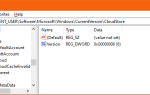
HKEY_LOCAL_MACHINE\SOFTWARE\Policies\Microsoft\Windows Defender
2. Экспортируйте ветку в файл REG. Затем щелкните правой кнопкой мыши «Защитник Windows» и выберите «Удалить».
 Ключи политики Защитника Windows в реестре.
3. Аналогичным образом сделайте резервную копию и удалите следующую ветку:
HKEY_LOCAL_MACHINE\SOFTWARE\Policies\Microsoft\Windows Advanced Threat Protection
4. Закройте редактор реестра.
5. Перезагрузите Windows.
Обратите внимание, что это полностью очищает параметры политики для Защитника Windows. По умолчанию в чистой установке Windows политики не устанавливаются. Страница настроек Защитника Windows теперь будет выглядеть следующим образом.
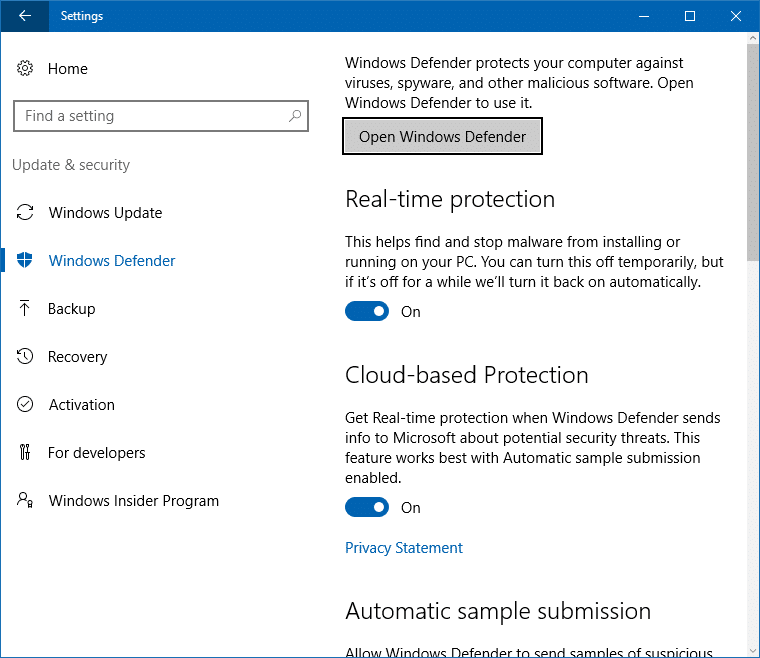
Важный: После удаления всех политик вы можете включить защиту PUA или рекламного ПО в Защитнике Windows. Если вы уже включили настройку раньше, вам нужно будет повторить процедуру сейчас.
Удаление политик Защитника Windows с помощью редактора групповой политики
Если вы используете Windows 10 Professional или более поздние версии, соответствующие групповые политики Защитника Windows доступны в следующей ветви редактора групповой политики (gpedit.msc).
Computer Configuration > Administrative Templates > Windows Components > Windows Defender
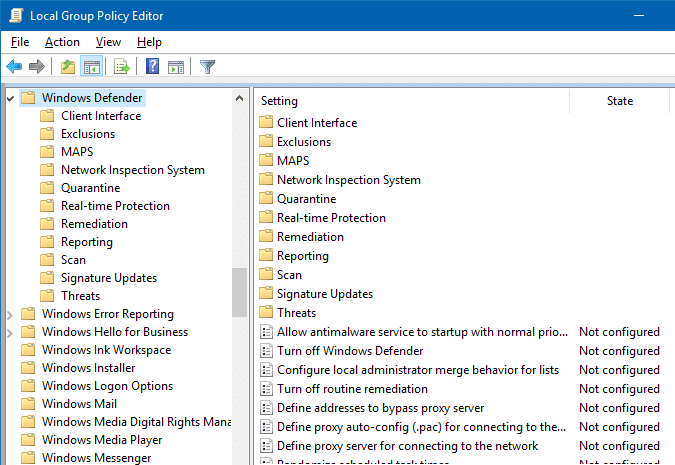 Параметры групповой политики Защитника Windows
Существует не менее 95 параметров политики, в которых собраны элементы в каждой подотрасли. Вам необходимо установить для каждого параметра значение «Не настроено».
Allow antimalware service to startup with normal priority
Turn off Windows Defender
Configure local administrator merge behavior for lists
Turn off routine remediation
Define addresses to bypass proxy server
Define proxy auto-config (.pac) for connecting to the network
Define proxy server for connecting to the network
Randomize scheduled task times
Allow antimalware service to remain running always
Кроме того, проверьте следующие подразделения в указанном выше местоположении и установите для каждого параметра политики значение «Не настроено».
Защитник Windows \ Клиентский интерфейс
Display additional text to clients when they need to perform an action
Suppress all notifications
Suppresses reboot notifications
Enable headless UI mode
Защитник Windows \ Исключения
Turn off Auto Exclusions
Extension Exclusions
Path Exclusions
Process Exclusions
Защитник Windows \ MAPS
Configure the 'Block at First Sight' feature
Join Microsoft MAPS
Configure local setting override for reporting to Microsoft MAPS
Send file samples when further analysis is required
Защитник Windows \ Система проверки сети
Turn on definition retirement
Specify additional definition sets for network traffic inspection
Turn on protocol recognition
Защитник Windows \ Карантин
Configure local setting override for the removal of items from Quarantine folder
Configure removal of items from Quarantine folder
Защитник Windows \ Защита в реальном времени
Turn off real-time protection
Turn on behavior monitoring
Scan all downloaded files and attachments
Monitor file and program activity on your computer
Turn on raw volume write notifications
Turn on process scanning whenever real-time protection is enabled
Define the maximum size of downloaded files and attachments to be scanned
Configure local setting override for turn on behavior monitoring
Configure local setting override for scanning all downloaded files and attachments
Configure local setting override for monitoring file and program activity on your computer
Configure local setting override to turn on real-time protection
Configure local setting override for monitoring for incoming and outgoing file activity
Configure monitoring for incoming and outgoing file and program activity
Защитник Windows \ Исправление
Configure local setting override for the time of day to run a scheduled full scan to complete remediation
Specify the day of the week to run a scheduled full scan to complete remediation
Specify the time of day to run a scheduled full scan to complete remediation
Защитник Windows \ Отчеты
Configure time out for detections requiring additional action
Configure time out for detections in critically failed state
Configure Watson events
Configure time out for detections in non-critical failed state
Configure time out for detections in recently remediated state
Configure Windows software trace preprocessor components
Configure WPP tracing level
Защитник Windows \ Сканирование
Check for the latest virus and spyware definitions before running a scheduled scan
Allow users to pause scan
Specify the maximum depth to scan archive files
Specify the maximum size of archive files to be scanned
Specify the maximum percentage of CPU utilization during a scan
Scan archive files
Turn on catch-up full scan
Turn on catch-up quick scan
Turn on e-mail scanning
Turn on heuristics
Scan packed executables
Scan removable drives
Turn on reparse point scanning
Create a system restore point
Run full scan on mapped network drives
Scan network files
Configure local setting override for maximum percentage of CPU utilization
Configure local setting override for the scan type to use for a scheduled scan
Configure local setting override for schedule scan day
Configure local setting override for scheduled quick scan time
Configure local setting override for scheduled scan time
Define the number of days after which a catch-up scan is forced
Turn on removal of items from scan history folder
Specify the interval to run quick scans per day
Start the scheduled scan only when computer is on but not in use
Specify the scan type to use for a scheduled scan
Specify the day of the week to run a scheduled scan
Specify the time for a daily quick scan
Specify the time of day to run a scheduled scan
Защитник Windows \ Обновления подписи
Define the number of days before spyware definitions are considered out of date
Define the number of days before virus definitions are considered out of date
Define file shares for downloading definition updates
Turn on scan after signature update
Allow definition updates when running on battery power
Initiate definition update on startup
Define the order of sources for downloading definition updates
Allow definition updates from Microsoft Update
Allow real-time definition updates based on reports to Microsoft MAPS
Specify the day of the week to check for definition updates
Specify the time to check for definition updates
Allow notifications to disable definitions based reports to Microsoft MAPS
Define the number of days after which a catch-up definition update is required
Specify the interval to check for definition updates
Check for the latest virus and spyware definitions on startup
Защитник Windows \ Угрозы
Specify threats upon which default action should not be taken when detected
Specify threat alert levels at which default action should not be taken when detected
Если некоторые из них уже читаются как «Не настроено», «Включите» параметр, нажмите «Применить» и установите для него «Примечание настроено». Это необходимо для очистки значений реестра.